




How to Backup Your Computer

In this decade computers have become such a mainstay, backup is no longer a 90s comic strip gaff.  Even your grandma, who’s only using that “computerbox” for flooding your inbox with kittens in costume chain-emails, probably has a general understanding of what backing up a hard drive means. Yet, this continues to be a task even the most frequent computer users ignore. The most common reason people give for not backing up their data is that they do not know where to begin, what devices to use or how to go about the backup process.

So, sit down and listen up! There are many very simple methods and a variety of devices that can be used for backing up important files or your entire hard drive.

 Network Attached Storage: The NAS is an autonomous storage device that is dedicated for backing up data. It sits on a network outside your PC, but is still connected to your Internet through a wireless or wired connection. Your computer will treat the NAS like any other hard drive and it will show up on your desktop or as a separate disk under ‘My Computer.’  Besides just serving as a device for data backup these devices can run in other server modes functioning as multimedia, Itunes, print, email or lightweight database servers.

▪  Pro: Access of several computers, automatic backup settings, remote access of files over the internet, built-in BitTorret clients, most versatile

▪ Cons: Pricey (basic 500 Gigabyte is around $130)  and more difficult to set up than a simple USB drive

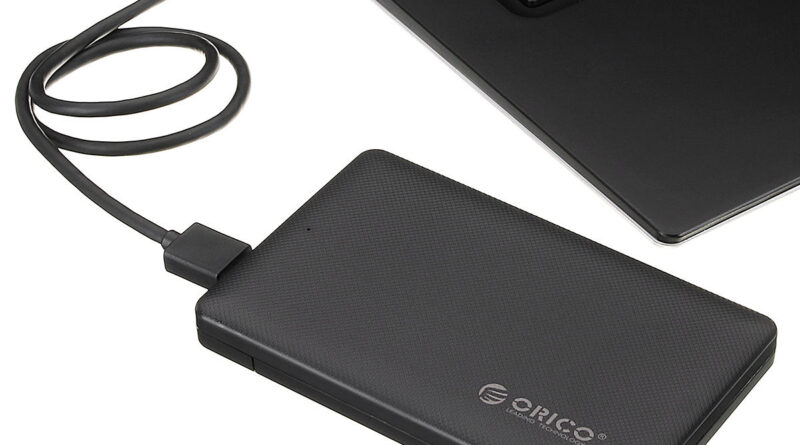
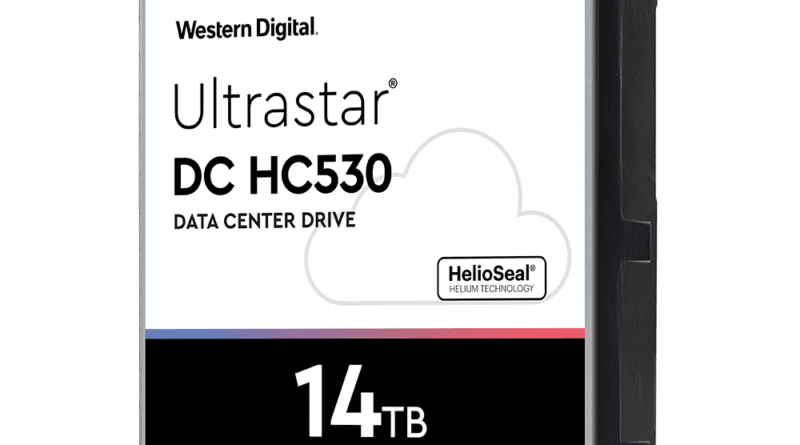
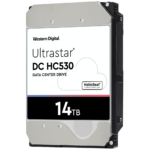
 External Hard Drive:  External hard drives are the most popular method of back up. You can plug them into your computer’s USB or Firewire port and use the built in software to automatically back up all imported files or folders. Most devices are also compatible with many of your computer’s backup software such as TimeMachine for Mac or Windows backup for WindowsXP/Windows Vista. These devices are easily portable, storable and some have wireless capabilities.  Prices on external hard drives have significantly dropped and you can typically find a one terabyte for around $100. One terabyte is more space than the average user could really ever hope to fill. Popular brands include Seagate, Western Digital, and LaCie.

  • Pros: easy to use, portable, automated backup
  • Cons: as much of a risk of failure as your computers hard drive, cost

Online Options: The huge benefit of online data storage or “cloud storage” is most allow file sharing between several different computers. Some options work on the web, some install themselves to your computer and operate like another hard drive and some install apps that work in the background of your computer. Some popular providers are Mozy, Dropbox, SugarSync. Online options are great because they allow access from any location with internet. Online backup storage is typically better for smaller amounts of data or your most important files. The major benefit of online back up is that you data is not held in any physical location so in the case your entire house blows up with all your computers and backup drives in it your files will still be safe.

  •  Pros: file sharing between computers, access from any location with Internet access, low cost, non-physical storage
  •  Cons: most free or low cost options have limited storage capacity and typically not the best option for entire hard drive back up anyhow

Another Computer: If you have two or more computers that are linked through your home network you can use the hard drive of one to back up the contents of the other. Desktop based file back up programs like FBackup or GFI Backup are free for personal use and allow you to easily backup files to any other computer on the home network.

USB flash drives: USB drives can be utilized to back up files quickly and are great to take on the go. There is your average run of the mill USB drive that can be plugged into your computer port and the files you want simply drag and dropped or saved to that location. However, there are now USB drives specifically designed for backup that have software similar to that on the larger devices already installed. All you have to do with these is plug them into your computer and hit the backup button.

  • Pro: low cost, simple and quick process, easily carried
  • Cons: much more limited storage space than your larger solutions and not suitable for backing up your entire hard drive.

DVD/CD/BlueRay: DVDs and CDs are easy and quick backup options for a few important files. However, DVDs and CDs are a difficult storage to device for large amounts of data and maintaining up-to-date backups of your data. Backup of your whole system will likely require multiple disks, and most disks are not rewriteable meaning you will have to continually reburn disks to maintain up-to-date backup. This process will be very time consuming and frustrating.

Blue ray options have a larger storage capacity (25GB), and therefore make a better option than DVDs and CDs for audio, video and photo collections. This options also works well for storing large projects when your hard drive is running low on space.

  • Pro: quick, cheap
  • Cons: limited storage capacity, inefficient for large amounts of data

RAID (Redundant Array of Independent Disks): This option is the easiest automated method and ranges from levels 0 to 6. RAID 0 and RAID 1 are the most common and most supported by the average PC. With RAID 1 data is written identically on two drives producing a “mirrored” set so if one drive fails the other will continue to operate normally. RAID will not save your data in the case of extensive data infection because both drive save the exact same data. Also, unless RAID came installed on your system the instillation process is rather intensive and requires physically opening your computer and doing some cable connecting.

Some NSA drives come with RAID array disks installed essentially giving you back up of your back up.

  • Pro: best set-and-forget method, very reliable, efficient with full drive storage capacity
  • Con: more complex and difficult instillation, expensive

Windows Backup/Restore (hardware device recommended in conjunction): Windows XP has both a System Restore and System Backup program built into the computer. System Restore is an automated program intended to rescue your PC in the event of failure or infection. System Backup is a manual program found in the Start menu that will walk you through the process of saving all the data on your computer or just some files. Windows Vista has an improved version of these programs however it requires the Business or Ultimate editions

Both of these programs are better than nothing, but less adequate that almost all other back up options. These programs can be used to aid back up on NAS devices or external hard drives.

  • Pro: easy and comes with the computer
  • Con: not as reliable, extensive or safe of an option

Time Machine (hardware device needed in conjunction): This is a brilliant backup software available to all Mac users in their dock or applications settings. Not only does it allow for quick and easy backup to NAS and any standard USB or Firewire external hard drive it also facilitates the easiest restoration of files. You can recue all files from a single save point or just a single version of a file from any point at which you saved it. The interface is all fancy schmancy with fun graphics and animation to keep you fully stimulated throughout your backup process. The program is very easy and user friendly, meaning no manual reading required. (Because we all know how exhausting reading is)

  • Pro: free, simple and easy to use, best file restoration process
  • Con: TimeMachine is only the backup software so you must have a device to back up your content too.


Posted in Data Backup Articles, Tips and Tricks | Tagged , , , , | Leave a comment

Wake up! Your hard drive will fail.

Long gone are the days when we questioned the basic value of data backup…or so you would think, but shockingly this is not the case. Plenty of you are still storing your businesses and lives on hard drives with little consideration as to what would happen if, god forbid, a piece of technology fails.

Wake up folks, it isn’t a question of if your hard drive will fail it is a question of when. Hard drive failure is an inescapable reality.  Whether it’s through human error, software corruption, physical failure or natural disaster most businesses will experience incidents of data loss because of hard drive failure.

In case I have not been able to scare you enough myself, here are some hard truths:

  • 15,000 hard drives fail every day
  • The odds of your hard-disk failing are about 1: 118. These odds are way better than you ever winning the lottery or dating a supermodel.
  • 94% of companies that suffer catastrophic data loss, and have not backed up, do not survive.
  •  Hard drive failure rates are much higher than their makers estimate.
  • Manufactures estimate the rate to be 1% but 2%-4% failure rate is more common.
  •  Under some conditions hard drive failure rate may reach as high as 13%.
  • A pattern of lessening quality has seemed to emerge due to price competition in the industry.
  • Many drives fail with absolutely no warning.

Now that you have hopefully been bullied into taking hard drive failure seriously, you and your business need to take the proper precautionary steps. Making sure you have a contingency plan in place is one of the most important steps. Your data should be backed in a way that is reliable, accessible and that will cause you minimal interruption in your activities if disaster were to occur.

Contact a reliable data recovery specialist for more information and assessment.

Sources:

(1) Bianca Schroeder, Bianca and Garth A. Gibson, “Disk Failures in the Real World: What Does an MTTF of 1,000,000 Hours Mean to You?” Proceedings of the 5th USENIX Conference on File and Storage Technologies, Pp. 1-16 (2007).

(2) Gonsalves, Chris, “Selling Backup and Recovery: Fear Vs. Comfort” ChannelNomics, Oct. 16, (2012).

(3) Scheier, Robert, “Study: Hard Drive Failure Much Higher Than Makers Estimate.” PC World, March 2, (2007).

Posted in Data Backup Articles, Data Loss Articles, Data Recovery Articles | Tagged , , , | Leave a comment

What Is Data Loss?

Data loss is one of the most common problems for modern computer owners, smart phone users, and businesses. Generally speaking, it occurs when files are inaccessible due to a number of factors, including media failure (such as a hard drive crash), accidental file deletion, or software error. Data loss often results in the need for data recovery and RAID data recovery services.

The costs of data loss are extensive.  By some estimates, data loss causes upwards of $10 billion in losses every year in the United States and Canada alone.  Fortunately, there are two ways to combat these costs: through regular data backup and data recovery efforts.

Backing up data involves making a copy or multiple copies of it in order to create “redundancy,” which means that if one copy becomes unavailable, the other one will still be around.  Data recovery is exactly what it sounds like–trained engineers use various methods to recover files from damaged storage media and after accidental or intentional deletion.

On this website, we’ll be discussing both the basic and the advanced details of data loss, data backup, and data recovery.  We’ll look at the costs of each service and the best tips that home and businesses computer users can use to avoid data loss. We encourage comments and meaningful discussion on all articles and topics.

If you’ve got any specific questions about data loss or data recovery, post them below in our comments.

Posted in Data Backup Articles, Data Loss Articles, Data Recovery Articles | Tagged , , | Leave a comment

Wedding Day Disaster

The date has been set, guest list finalized and reception booked. Your wedding day is finally here, and you have hired a photographer to capture the memories. But, as one bride discovered, even professionals can experience data loss. This year a professional wedding photographer experienced a technical failure in her brand new SD card. The card was completely filled with the photos from a recent wedding. For professional photographers, not only are the memories of their customers at stake, but the integrity of their entire business. Luckily for them, a leading data recovery company is currently working on the case.

ESS Data Recovery is no stranger to camera malfunction and photo recovery. From dropped cameras to failed SD cards ESS Data Recovery has rescued the photos of both professionals and Regular Joes.  Most recently, they were able to recover the photos of a well-known magazine photographer. This customer had been doing a shoot for a large magazine when he experienced the data loss. ESS saved both his photos and his reputation.

While photo loss can be a very traumatic experience, recovery technology is continually developing and companies like ESS Data Recovery are becoming better at rescuing lost photos and data in all sorts of circumstances.

Posted in Data Loss Articles, Data Recovery Articles | Tagged , | Leave a comment

Disaster Strikes

Small businesses should be prepared for data loss scenarios before they happen

When Mother Nature strikes, she rarely checks to make sure you’ve protected your business data. According to a poll conducted by the National Federation of Independent Business, at least 30% of small business owners have been adversely affected by natural disasters resulting in business closures for 24-hours or more.

Whether it is physical destruction by tornado or power surges from thunderstorms, bad weather always creates the chance of putting your data at risk. According to Gartner, only 35 percent of small businesses have a disaster recovery plan in place and fewer than 10 percent have crisis management, contingency, business recovery and business resumption plans. Furthermore, a majority of small businesses are unprepared for terrorist attacks or natural disasters and would be unable to quickly and smoothly execute basic business duties.

Take action now, before disaster hits. Make sure to have all of your data backed up and an emergency plan in place for the event of a disaster. It is also important for businesses to keep copies of data off sight or utilize methods such as cloud storage. And be sure to research your top data recovery providers if data loss should occur.

Sources: http://www.411sbfacts.com/sbpoll.php?POLLID=0023

http://www.gartner.com/press_gartner/quickstats/busContinuity.html

Posted in Data Loss Articles | Tagged , , | Leave a comment

Saving Your Laptop from Spills

The $5 bottle of wine that helped you relax last night, the buck fifty cup of coffee that perked you up in the morning, or just that glass of free tap water can all become your most expensive drink after they are spilt right onto your laptop. But don’t start selling your things and auctioning off your children quite yet. Below are steps to salvage your computer after a liquid spill

  1. Shut it down                                                                                                                       Close laptop, disconnect the A/C adaptor, take out the battery and unplug the device.
  1. Tilt laptop to the side to drain liquid
  1. Remove all external devices                                                                                          This including printer and mouse cables, floppy drive, CD drive, and modem cards.
  1. Turn laptop upside down and tilt in a variety of directions                            This will hopefully prevent liquid from entering deeper into the device and drain any pooling liquid.
  1. Repeat with all external parts                                                                                       Tilt floppy drives, CD drives and other removable parts to remove excess water       then dry and place on towel or in a bowl of rice if necessary.
  1. Dry any of the liquid on the surface of the computer and keyboard                 If keyboard can be easily removed, do so, and clean.
  1. Open laptop case                                                                                                                    If you cannot dry the entire spill externally, or believe any liquid may have seeped into the inside of your laptop, it may be necessary to disassemble the case and attempt to dry with lint-free cloth. Some liquids can corrode internal circuit board and lead to irreversible damage and hard drive failure.
  1. Remove Hard drive and memory cards                                                           Whether or not you believe the spill has seeped into the internal circuit board it is a good idea to remove the hard drive to prevent any chance of data loss.
  1. Dry dampened areas                                                                                                         Dry all liquid with a lint-free cloth.
  1. Rinse                                                                                                                                        For non-water spills it may be necessary to rinse the circuit board and other non-moving components with deionized water. Tap water may leave deposits and cause electrical shorts. Do not over rinse! While the circuit board and other non-moving components handle water, only rinse as much as needed.
  1. Let Dry                                                                                                                                  There are two techniques for drying:
    • Naturally:  Prop laptop up so air may circulate around the entire unit. One way of doing this is putting the unit in a tee-pee like position on top of a towel and in safe location where it will not be bumped or disturbed. Let dry for 24-72 hours and place battery in a bowl of rice.
    • Low Heat: Place laptop in an area of low heat either by a space heater, radiator or other location of warmth. Let dry for 12-24 hours. High levels of heat may cause oxidation and corrosion.
  1. Reassemble                                                                                                                         Once thoroughly dried, cross your fingers, put the unit back together and power       back on.
  1. Take to computer repair personnel                                                                                If your laptop is still not functioning properly take to a computer repair shop or       customer service center. Data recovery may be necessary if damage has been done to the hard drive. Hard drive may be removed and put into another similar unit to test. If any clicking noises or signs of failure appear, shut down computer and remove hard drive immediately. Drive will need to be sent to a data recovery facility for evaluation.

DO NOT

  1. Use a blow dryer

Blow dryers can blow liquid deeper into the circuit board and internal components of your laptop, cause static problems, blow dust and particles into the laptop, melt plastic components and other terrible, awful things.

  1. Place laptop in the oven

Laptops are like children, do not put them in the oven unless you really no longer want them functioning

  1. Power on after the spill

Water and electricity make about as good of a couple Charlie Sheen and Denise       Richards. More damage may be done and there is potential for the unit to catch on fire.

Sources:

http://www.laptoprepair101.com/laptop/2011/08/17/fix-laptop-after-liquid-spill/

http://www.ehow.com/video_113626_clean-laptop-spills.html

http://www.wikihow.com/Save-a-Laptop-from-Liquid-Damage

Posted in Tips and Tricks | Tagged , , , , | Leave a comment

Fear More than the Blue Screen of Death: Signs of Physical Hard Drive Failure

While the blue screen of death haunts the nightmares of computer users everywhere there are many more signs of hard drive failure to be weary of.  Mechanical hard drive failure is the most fatal and can be induced by accidental mishandling or just spontaneous bad karma. However, the possible damage to the hard drive may not always be explicitly evident.

Below are a few warning signs to tell if your hard drive has suffered or is suffering mechanical failure. In these cases the hard drive will require the assistance of a professional data recovery service with clean room technology.

Warning: If your hard drive has suffered physical damage, recovery software and fly-by night recovery operations will not suffice. Allowing unqualified technicians to open your drive or opening your drive yourself may actually do more damage to the drive and could even leave your data unrecoverable.

In cases of mechanical failure, sound and performance issues are the best indicators.

With sound issues you should turn the drive off immediately after detecting any noise you think is abnormal. If there is a mechanical failure, leaving the drive on can cause more damage to the platter. Some signs to watch out for are:

1)   If the drive makes regular clicking or clanking noises, it could mean the read and write arm is malfunctioning.

2)   If the drive is making grinding or screeching noises, it could mean the bearing or spindle motor is failing.

Performance problems are harder to detect because issues such as viruses and memory leaks can cause similar symptoms.Regardless, you should make sure your data is backed up and even consider getting the drive evaluated. Some things you can watch out for are:

1)   Slowdown: If saving and moving files takes longer than a phone conversation with your senile grandmother.

2)   Freezing: If getting on your computer has become a continual game of freeze tag where you never win and the computer locks up for no apparent reason. Often the keyboard and mouse are unresponsive as well.

3) Disappearing files: If you feel like Nancy Drew trying to solve the mysterious case of the vanishing files.

4)   Error Messages: If your screen is often raped with frequent cryptic error messages.

When your hard drive crashes your system will not be able to reboot and this is when you may receive the greatly feared blue screen of death.


Posted in Data Loss Articles, Data Recovery Articles | Tagged , , , | 2 Comments

iRecovery

It happens, you will be filled with regret and you will tell everyone you knocked it into the sink by mistake, but you are not kidding anybody. We know what happened, you are finally suffering the repercussions of your technological separation anxiety. You just dropped your brand-spanking new iPhone into the toilet. Or perhaps you just got a little too jiggy trying to pull off the dance moves from Apple’s new commercial and it slipped right from your grasp into a rain puddle. Either way your iPhone is now sleeping with the fishes.

So, what do you do? That gadget is your lifeline and while your phone company will surely be quick to supply you with a full-price replacement, in most cases they will not be able to retrieve your data

This is where data recovery comes into play. The swirly you gave your phone may have caused irreversible physical damage, but using sophisticated data recovery techniques the texts from your mom, illegally downloaded music files, drunkenly left voicemails and of course all content of important value may be retrievable. For many of us our lives are stored in our phones and losing that is an identity crisis no one should have to bare

Data recovery is a continually developing science that is no longer applicable to just your computer’s hard drive, but many of the other devices you use and abuse on a daily basis.  Whether it is due to tough love or technological malfunction, data loss is a frequent occurrence that most of us do not prepare for.

Data recovery specialists realize that in today’s world just as much valuable information is stored on your hand held devices as on your actual computer. That is why they have worked to advance techniques that ensure you are always connected to your data, no matter how uncoordinated or unlucky you are.


Posted in Data Loss Articles | Tagged , , | Leave a comment

Recovering Data At Home: What To Know Before You Start

There’s been a rise in interest in at-home data recovery in the last few years, and it’s easy to see why: data recovery’s extremely expensive, especially for some high capacity newer drives.

Data recovery companies often claim that home data recovery is like at-home surgery: it’s not a good idea and you’ll usually end up in a worse condition than where you’d started.  This is true for the most part, especially if a drive is exhibiting a serious symptom of physical failure.  For instance, if a hard drive is making an unusual sound–and especially a clicking sound–you should immediately leave it alone.  Otherwise, you’ll probably end up ruining a good amount of your data.  Hard drives don’t tend to make sound unless one or more mechanical components are malfunctioning, and if this is occurring, the heads of the drive could be physically scraping data off of the platters.  As you might imagine, this means that the data will be permanently unrecoverable.

At-home data recovery is possible with very light physical damage, although it’s difficult to tell light physical damage from serious physical damage unless you’ve worked with hard drives for a long period of time.  Nevertheless, there are software solutions that can occasionally read data in a slower, more methodical way, resulting in a full at-home data recovery.  This is rare, however, and professional data recovery companies never run software first when they think that a physical failure occurred.

Software can recover data that has been deleted or lost due to file corruption in many circumstances.  This depends on how much of the file was overwritten and the quality of the data recovery software.  If you’re trying to recover lost data that was deleted or corrupted, however, you should always read the software instructions fully before starting and never install data recovery software on the drive that’s holding the deleted or corrupted data. Doing so will often result in permanent data loss or at least a bigger bill from a professional recovery service.

You might be wondering whether it’s possible to perform advanced data recovery procedures at home.  The short answer is no, but in our next post we’ll look at some of the tools and equipment that professional data recovery companies use and why this equipment is difficult–if not impossible–to find, purchase, and use properly.

Posted in Data Recovery Articles, Uncategorized | Tagged , | 1 Comment

The Reasons For Google’s Data Loss

Google made big news yesterday due to an unfortunate loss of Gmail data.  Gmail is one of the world’s most popular free email systems, chiefly due to its ease of use and the trust that a lot of users have in Google as a technology company.

Unfortunately, .02% of Gmail users had their accounts wiped clean due to a software error.  While Google didn’t elaborate much on the reasons for the error–why would they, after all–it’s safe to assume that they’re telling the truth, because they also claim that the data loss affected their hard drive backups of these users’ data.

Situations like this one go to show how data loss can affect any company, regardless of its size or technical proficiency.  Google will likely come out of the blunder without too much damage, as they keep multiple backups of all of their users’ accounts on data tapes.

It’s tough to imagine thousands of users’ email accounts resting in a dusty box of data tapes somewhere, but for users who had their accounts deleted, it’s good to know that they’ll be up and running again in the next few days.  As any business which has dealt with a serious data loss knows, it can take some time to restore some tapes, but Google should be applauded for keeping multiple redundant backups of crucial user data.

Source:

Mashable.com, “Google Apologizes For Gmail Reset Issues.”

Posted in Data Loss Articles | Tagged , | Leave a comment